LoanCraft PPE API Developer Guide
Reference for the LoanCraft Price, Program & Eligibility (PPE) API.
Getting Started
The LoanCraft PPE API exposes published programs from the Pricing, Program & Eligibility engine. Program rules are curated by LoanCraft and administered via the PPE Manager. Use this API to build or retrieve a PriceRequest, submit it, and receive eligible offers along with exclusions.
- Access all published programs via the API.
- Rules are maintained by LoanCraft (via PPE Manager).
- Supports default request templates and on-the-fly requests.
The easiest way to start using the PPE API is to base your request on a pre-configured PriceRequest template, which you can retrieve using the PriceRequestDefault endpoint.
Templates are configured in the PPE Admin interface. Each template is identified by a unique DefaultRequestId.
Steps
- Retrieve the Default Request
- Call
PriceRequestDefaultwith yourDefaultRequestIdto get a ready-to-usePriceRequestobject pre-filled from the template.
GET /ppeapi/api/PriceRequestDefault?DefaultRequestId={DefaultRequestId} Host: api.loancraft.net Authorization: Bearer {your_token} - Call
- Customize the Request
- Modify fields as needed (e.g.,
LoanAmount,PropertyValue,Term). - For fields with defined valid values (e.g.,
LoanPurpose,Occupancy,PropertyType), use theOptionSetendpoint to retrieve the current list of accepted values.
- Modify fields as needed (e.g.,
- Submit and Receive Offers
- POST the
PriceRequestbody directly to theOfferListendpoint. The response containsofferList(eligible offers) andexclusionList(ineligible programs with reasons).
POST /ppeapi/api/OfferList Host: api.loancraft.net Authorization: Bearer {your_token} Content-Type: application/json { "LoanAmount": 350000, "PropertyValue": 500000, "LoanPurpose": "PURCHASE", "Occupancy": "PRIMARY", ... } - POST the

Simplest flow using a pre-configured PriceRequest template
Before making a pricing request, gather all information that pricing rules will evaluate — borrower details, property characteristics, and loan parameters.
The primary object is PriceRequest, which contains PriceRequestData with all pricing fields. See the Swagger UI for the full schema.
PriceRequest schema in Swagger to understand all available fields, required parameters, and data types.
Steps to Prepare a Pricing Request
- Identify Required Fields
- Gather all borrower, property, and loan details (e.g., loan amount, purpose, occupancy, credit score, property type).
- Review the PriceRequest Structure
- Check
PriceRequestDatawithin thePriceRequestobject to ensure all pricing fields are properly populated.
- Check
- Use the OptionSet Endpoint for Enumerated Fields
- Fields like
LoanPurpose,Occupancy, andPropertyTypehave defined valid values. CallOptionSetto retrieve the current accepted values for all configurable fields.
GET /ppeapi/api/OptionSet?environment=Sandbox&clientCode={your_client_code}
Host: api.loancraft.net
Authorization: Bearer {your_token}
The response contains accepted values for all configurable fields. Refer to Swagger for the full
OptionSetResponseschema. - Fields like

Gathering inputs and using OptionSet to prepare a PriceRequest
Two Ways to Build a PriceRequest
- Use a Default Template — Retrieve a pre-configured
PriceRequestviaPriceRequestDefaultby supplying aDefaultRequestId, then customize fields (e.g.,LoanAmount,PropertyValue,Term). - Build from Scratch — Construct a
PriceRequestmanually. UseOptionSetto fetch valid enumerations (loan purpose, occupancy, property type, etc.).
End-to-End Steps
- Obtain an Authentication Token
- Call the authentication endpoint with your API Key, UserId, and Password. See the Authentication section for full details.
- Include the Bearer Token on Every Request
Authorization: Bearer {your_token} - Build the PriceRequest Object
- Use a default template or build manually. Call
OptionSet(passenvironmentandclientCode) to get valid values for enumerated fields.
- Use a default template or build manually. Call
- Submit and Parse the Response
- POST the
PriceRequestbody to/api/OfferList. offerList— all qualifying offers.exclusionList— programs that failed eligibility rules, with reasons.elapsedTimeInMilliseconds— useful for performance monitoring.
- POST the
Additional Features
The PPE engine supports three distinct approaches to generating offers. They can be used independently or combined:
- Single Offer — return exactly one best-matching offer for the scenario as submitted.
- Variations — instruct the engine to explore alternate scenarios (different terms, loan amounts, LTVs, etc.) and return offers across all of them.
- Offer Pool — apply a curated pool configuration that defines which programs and parameters the engine considers, returning a structured set of offers.
1. Single Offer
Set SingleOffer = true on PriceRequestData to receive exactly one offer — the best match for the request as submitted. Ideal for workflows that display a single rate or product to the user.
Set SingleOffer = false (the default) to receive all qualifying offers.
2. Variations
Variation flags instruct the engine to run additional pricing passes beyond the base scenario. Each flag enabled multiplies the number of passes performed, so use only what you need.
Boolean Flags
TryAlternativeLoanAmounts— try loan amounts above and below the requested amountTryAlternativeLoanAmountsAcrossOtherOptions— apply alternate loan amounts across other variation passesTryMaxLTV— attempt the maximum qualifying LTVTryOtherTerms— try additional loan terms beyond the requested termTryOtherProductTypes— try other product types (e.g., ARM vs. Fixed)TryOtherInvestorTypes— try alternate investor typesTryOtherLenders— query additional lenders beyond the default setTryOtherLTVs— try alternate LTV valuesTryOtherDiscountFees— try alternate discount fee amountsTryBuydownIfAllowed— attempt a buydown if the program permits itTryVariousFeeTolerances— try a range of fee tolerances up toUpperRangeForFeeToleranceToTry
Explicit Sets
LendersToQuery— specific lenders to include in the queryLoanAmountsToTry— explicit list of loan amounts to evaluateTermsToTry— explicit list of alternate terms to evaluateDiscountFeesInPointsToTry— explicit list of discount fee amounts (in points) to evaluate
3. Offer Pool
An Offer Pool defines a curated set of programs and parameters managed in PPE Manager. Using an Offer Pool is the recommended approach for consumer-facing workflows. Set TryOfferPool = true along with one of the two options below.
TryOfferPool = true.
Option A — Reference a saved profile
Set OfferPoolProfile to the ID of a profile configured in PPE Manager. The Offer Pool Parameters Id is shown in the bottom-right corner of the Offer Pool Settings screen.
{
  "TryOfferPool": true,
  "OfferPoolProfile": "339847",
  "LoanAmount": 350000,
  ...
}
The Offer Pool Parameters Id is shown in the bottom-right of the Offer Pool Settings screen in PPE Manager.
Option B — Supply parameters directly on the request
Populate the OfferPoolParameters object inline and set UseOfferPoolParametersFromRequest = true. The engine will use these parameters instead of looking up a saved profile — useful for dynamic scenarios where pool parameters need to vary per call.
{
  "TryOfferPool": true,
  "UseOfferPoolParametersFromRequest": true,
  "OfferPoolParameters": {
    ...
  },
  "LoanAmount": 350000,
  ...
}OfferPoolParameters schema in Swagger for the full list of configurable fields.
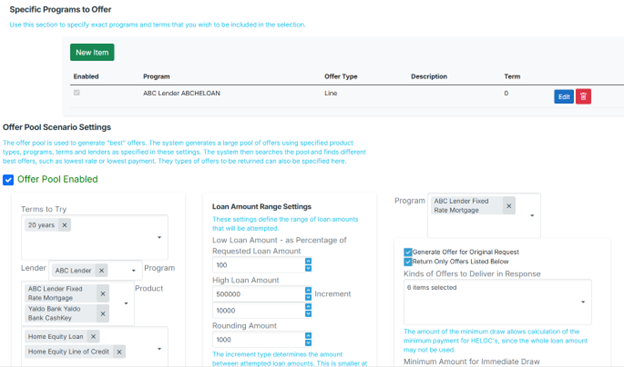
Offer Pool Configuration in PPE Admin
The OfferList response contains two key collections and a timing field:
- offerList — programs that passed all eligibility rules
- Program name and ID
- Interest rate, price, and APR
- Payment, term, and lock period
- Associated fees
- exclusionList — programs that failed one or more eligibility rules
- Program name and the rule(s) that caused exclusion.
- Use this to diagnose why a program didn't qualify.
- elapsedTimeInMilliseconds — total server-side processing time; useful for performance monitoring.
Example Response
{
  "offerList": [
    {
      "ProgramName": "Standard Fixed 30-Year",
      "Rate": 6.25,
      "Price": 99.50,
      "APR": 6.32,
      "LockDays": 45
    }
  ],
  "exclusionList": [
    {
      "ProgramName": "High LTV Program",
      "ExclusionReason": "LTV exceeds program maximum of 90%"
    }
  ],
  "elapsedTimeInMilliseconds": 312
}MaxLTV determines the highest qualifying LTV and loan amount by evaluating applicable exclusion rulesets (considering single-rule exclusions).
Once MaxLTV and MaxLoanAmount are determined, a loan offer is attempted using:
LoanAmount = LOWER OF ( MaxLoanAmount OR ( HomeValue × ( MaxLTV − OtherLiens ) ) )
These PriceRequest fields control how the engine searches for a rate that hits a revenue target within a fee tolerance:
BuydownAddOrSubtract— whether discount fees are added to or subtracted from the loan amount.FeeTolerance— percentage tolerance for fees (e.g., up to ~4%).GoAboveFeeToleranceIfNecessary— if true, the engine will exceed the fee tolerance if necessary to find a qualifying rate.RevenueTarget— desired revenue amount for the lender.
The PPE searches for the rate that hits the revenue target within the fee tolerance, applying discount points as needed.
Credentials & Implementation
- Obtain Sandbox credentials (API Key, UserId, Password, and Sandbox endpoint) from LoanCraft.
- Integrate and validate against the Sandbox environment.
- Use Swagger to explore endpoints and test request/response payloads.
- When validation is complete, request Production credentials and endpoints from LoanCraft.
Credentials Required
- API Key
- UserId
- Password
- Authentication Endpoint
Obtain an Access Token
Send a GET request to the Token endpoint with your credentials as request headers:
GET /authapi/api/Token HTTP/1.1
Host: api.loancraft.net
APIKey: <<< API KEY >>>
APIEnvironment: Sandbox
UserId: <<< USER ID >>>
Password: <<< PASSWORD >>>
Token Response
A successful response returns the following fields:
{
  "message": "User logged in successfully.",
  "token": "eyJhbGci...",
  "environment": "Production",
  "clientCode": "Z8",
  "role": "",
  "expiration": "2025-06-10T16:27:19.5827518Z"
}token— the JWT Bearer credential to include on all subsequent API callsexpiration— UTC timestamp when the token expires; request a new token before this timeenvironmentandclientCode— confirm the context the token was issued forrole— the role assigned to the authenticated user
Include the token on all subsequent requests:
Authorization: Bearer {your_token}
expiration. Do not cache tokens indefinitely — request a new one before expiry. Expired tokens are rejected with 401 Unauthorized.
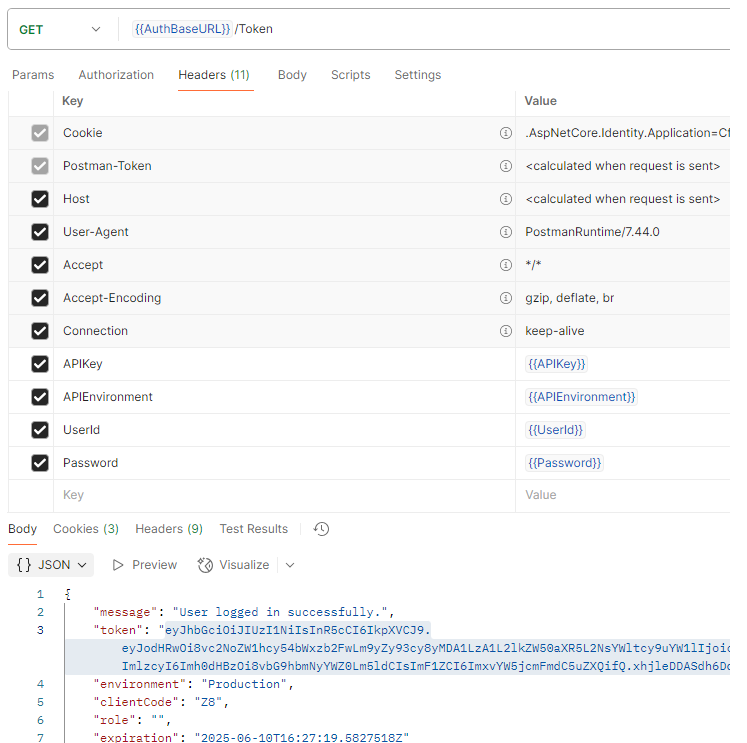
Example Token request and response in Postman
Validate Access
curl -X 'GET' \
  'https://api.loancraft.net/Sandbox/PPEAPI/api/QuickTestAuth' \
  -H 'accept: text/plain' \
  -H 'Authorization: Bearer <your_jwt_token>'
A successful response confirms authenticated connectivity. Use /api/QuickTest (no token required) to verify basic connectivity before authenticating.
The API returns standard HTTP status codes. The two most common non-success responses are:
400 Bad Request — Validation Failure
Returned when the PriceRequest fails server-side validation. The response body includes a machine-readable description of what failed:
{
  "error": "Validation failed",
  "details": "LoanAmount must be greater than zero. ..."
}
Inspect details to identify and correct the offending fields before retrying.
500 Internal Server Error
Returned for unexpected server-side errors. The response body includes a traceId that can be used to correlate the error in server logs:
{
  "error": "An unexpected error occurred while processing the pricing request.",
  "traceId": "a3f2c1d4-..."
}
Capture and log the traceId from 500 responses — it is the key needed to investigate the error with LoanCraft support.
401 Unauthorized
The token is missing, invalid, or expired. Request a new token and retry.
exclusionList of a successful (200) response.
Explore and test all endpoints interactively with the Swagger UI.
Open Swagger Console/authapi/api/Token— obtain bearer token/PPEAPI/api/QuickTest— unauthenticated connectivity check/PPEAPI/api/QuickTestAuth— authenticated connectivity check/PPEAPI/api/OptionSet— retrieve all valid field enumerations (passenvironment&clientCode)/PPEAPI/api/PriceRequestDefault— get a fullPriceRequesttemplate byDefaultRequestId/PPEAPI/api/PriceRequestDataDefault— get just thePriceRequestDataportion of a template/PPEAPI/api/OfferList— submit aPriceRequestand receive pricing results/PPEAPI/api/SendLeadAndGetOffers— submit lead info alongside a price request; returns offers and lead post result/PPEAPI/api/SavedDeal— GET byLeadIdto retrieve a saved deal; PUT to save a deal/PPEAPI/api/FieldFilters/OfferItems— field visibility/filter config for offer items/PPEAPI/api/FieldFilters/PriceRequest— field visibility/filter config for price request data
- Endpoints and credentials may change; always store them in configuration, never hard-coded.
- Enabling offer variations (e.g.,
tryOtherTerms,tryMaxLTV) multiplies the scenario space and will increase response time. - Use default templates and Offer Pools from PPE Admin to streamline setup and reduce request complexity.
- Always capture the
traceIdfrom 500 responses — it is required to investigate errors with LoanCraft support.